

👉🏻 Click thumbnail to watch on Loom:
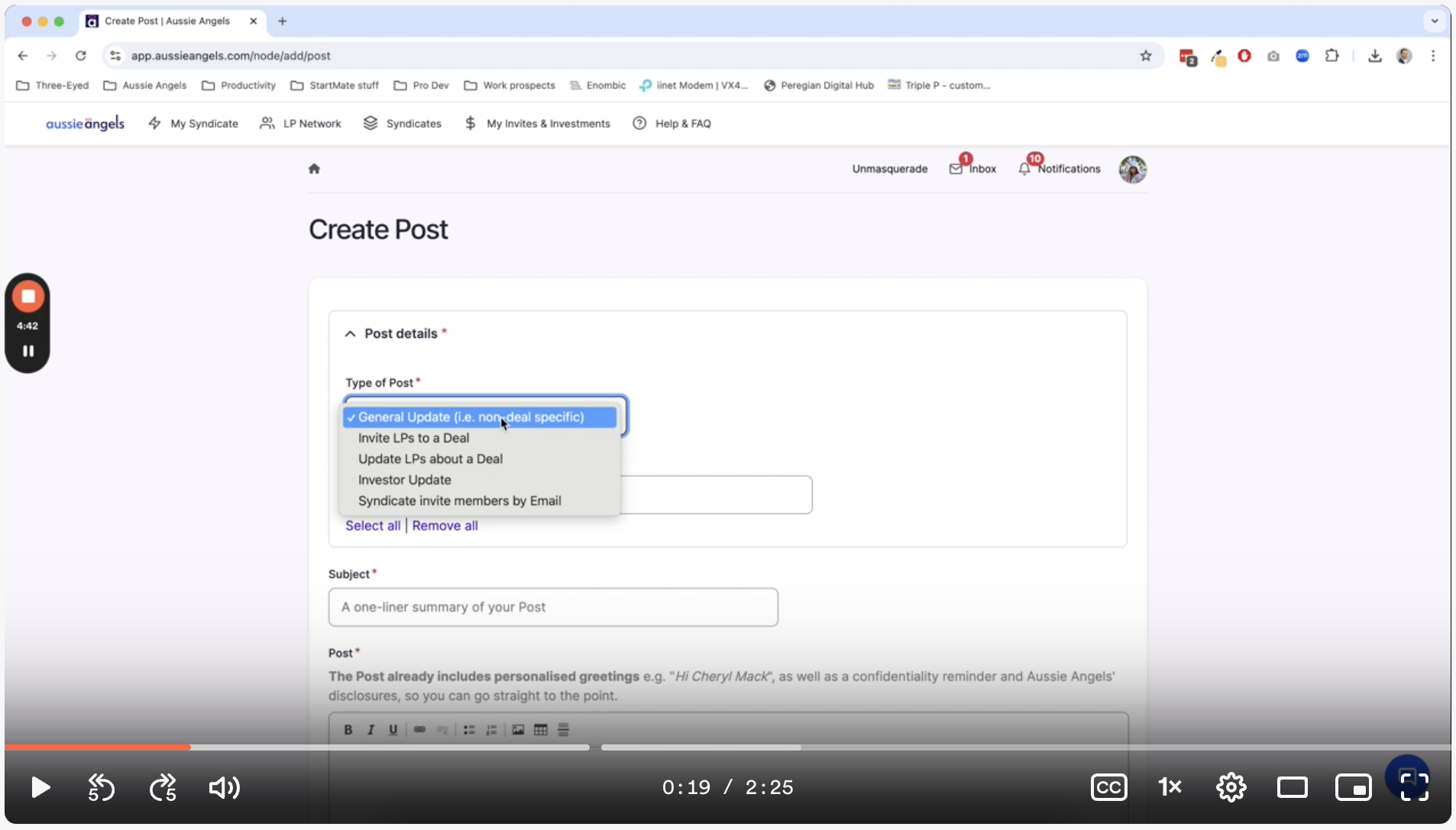
👈🏻 Step 1: Navigate to the "Posts" Section
Log into your Aussie Angels account.
Go to "LP Network" and then click "Manage".
Select "Posts" to see your previous posts.
⚙️ Step 2: Create a New Post
Click "New Post".
You'll default to "General Update". (You can see the other types of posts available.)
Select your recipients:
Choose individual members one by one.
Or select "All" to send to everyone in your syndicate.
You can also remove recipients as needed.
📝 Step 3: Write Your Message
Write your message. (Remember, their name will be included in the email, so you don't need to say "Hi [Name]".)
If you're working on multiple draft revisions, add a "Revision Log" message before you save so you can track changes. (These will be visible to your other leads.)
👀 Step 4: Review & Send
When you're happy with your message, click "Save".
You'll see a preview of the email, including your message, subject line, and our confidentiality notice.
Click "Send Email" to send the post to your syndicate members.
Note: Before you send, you can always go back and edit the post if you need to make changes. You'll find a revision log to track all edits.
✅ That's it! You've successfully sent a General Update to your syndicate members.
💡 Important Tip: Take advantage of the preview feature to ensure your message looks exactly how you want it to before sending it out.
...